PostHog source
Receive PostHog webhook events in Knock to trigger workflows and automate actions based on product analytics events.
The PostHog source enables you to receive PostHog webhook events directly in Knock. PostHog sends webhook callbacks when actions fire in your product analytics, such as a user completing a key funnel step, a feature flag change, or a custom event you define. Knock verifies each payload, identifies the event type, and executes the actions you configure.
This integration is useful for building notifications triggered by product behavior: reaching out to users who complete onboarding milestones, alerting your team when a feature flag is changed, or triggering re-engagement workflows based on usage patterns.
Knock supports ingesting any of PostHog's supported events, so you can map them to actions as your needs evolve.
Prerequisites
#- A Knock account with at least one environment configured.
- A PostHog project with access to the Webhooks settings in the PostHog app.
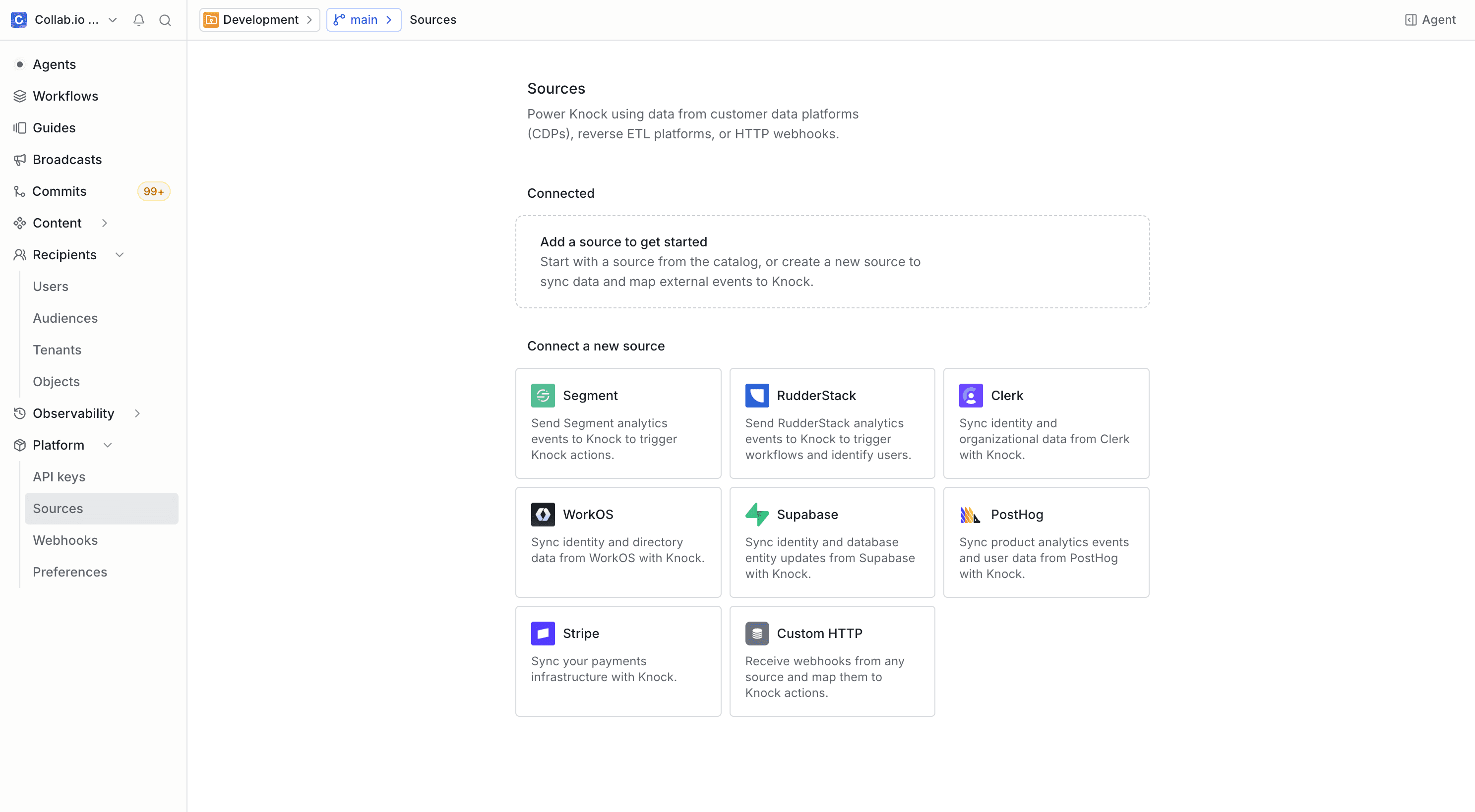
Getting started
#
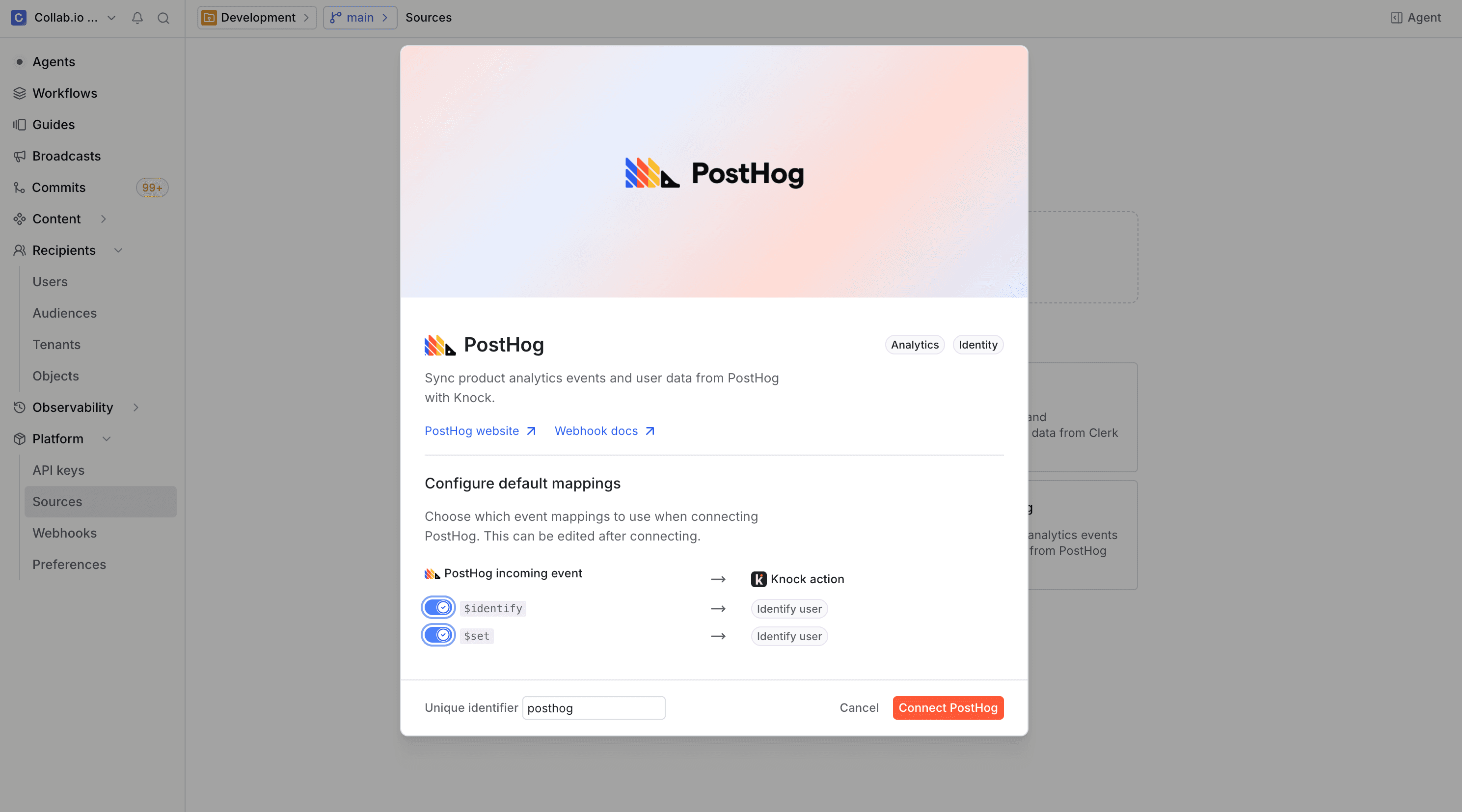
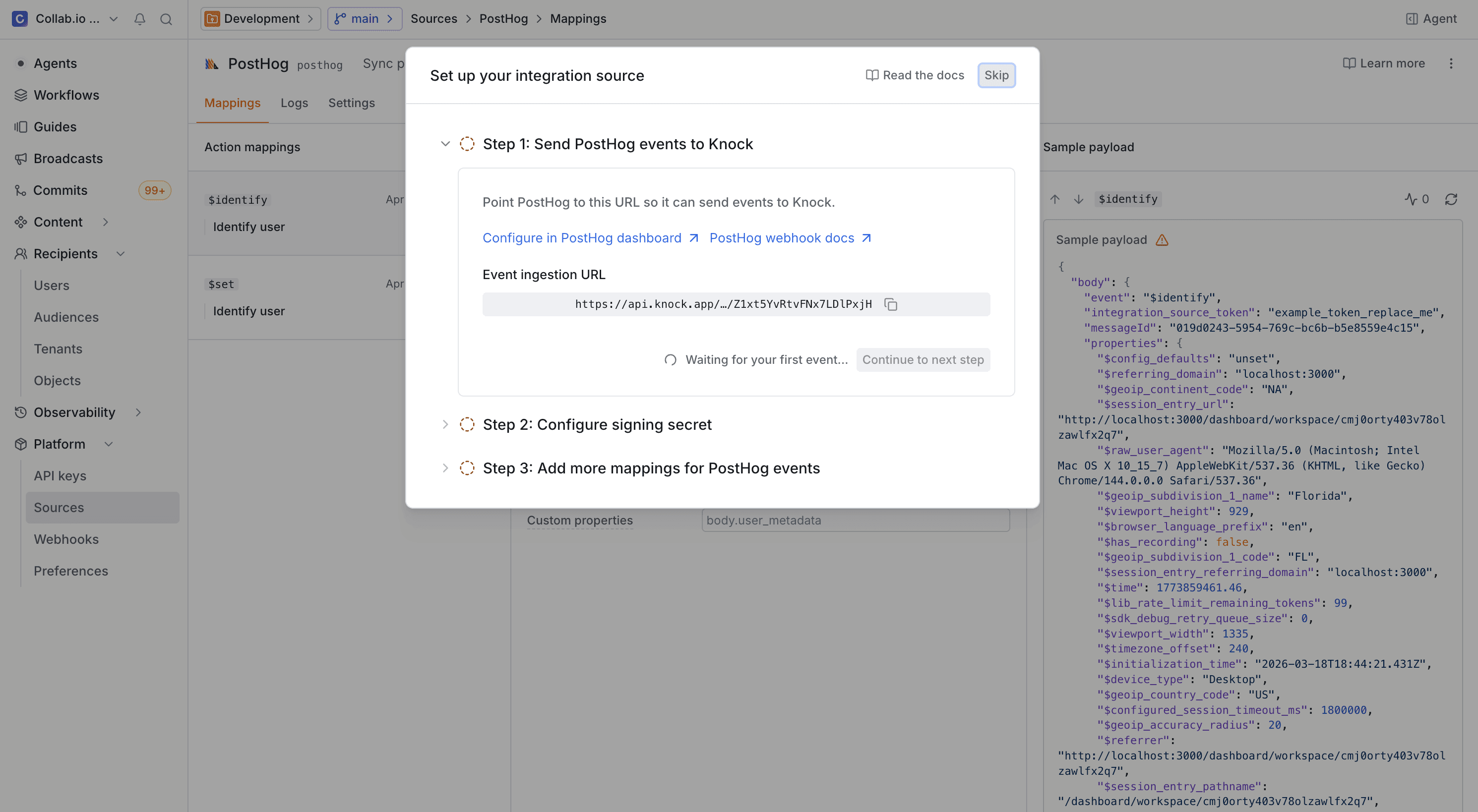
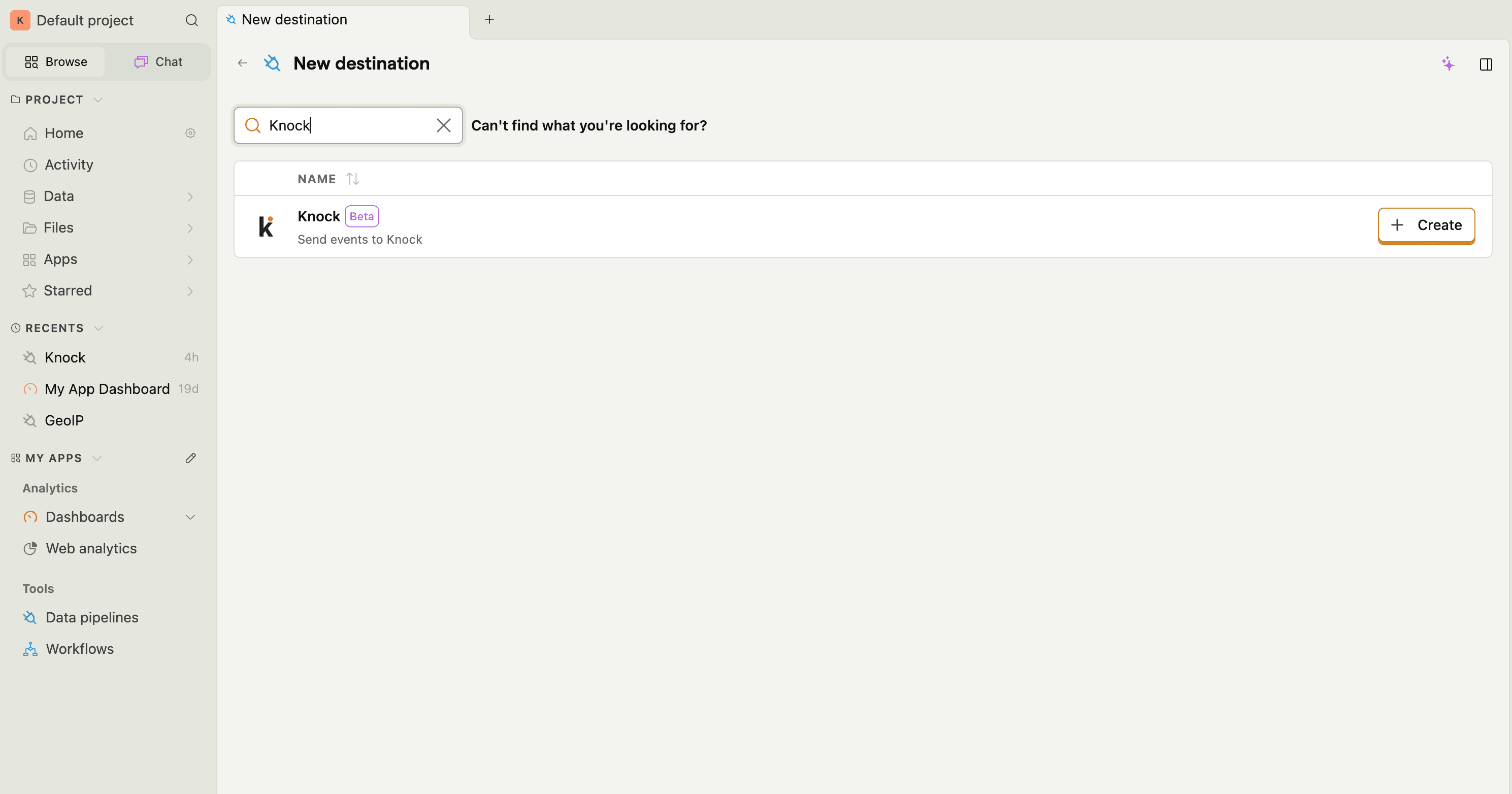
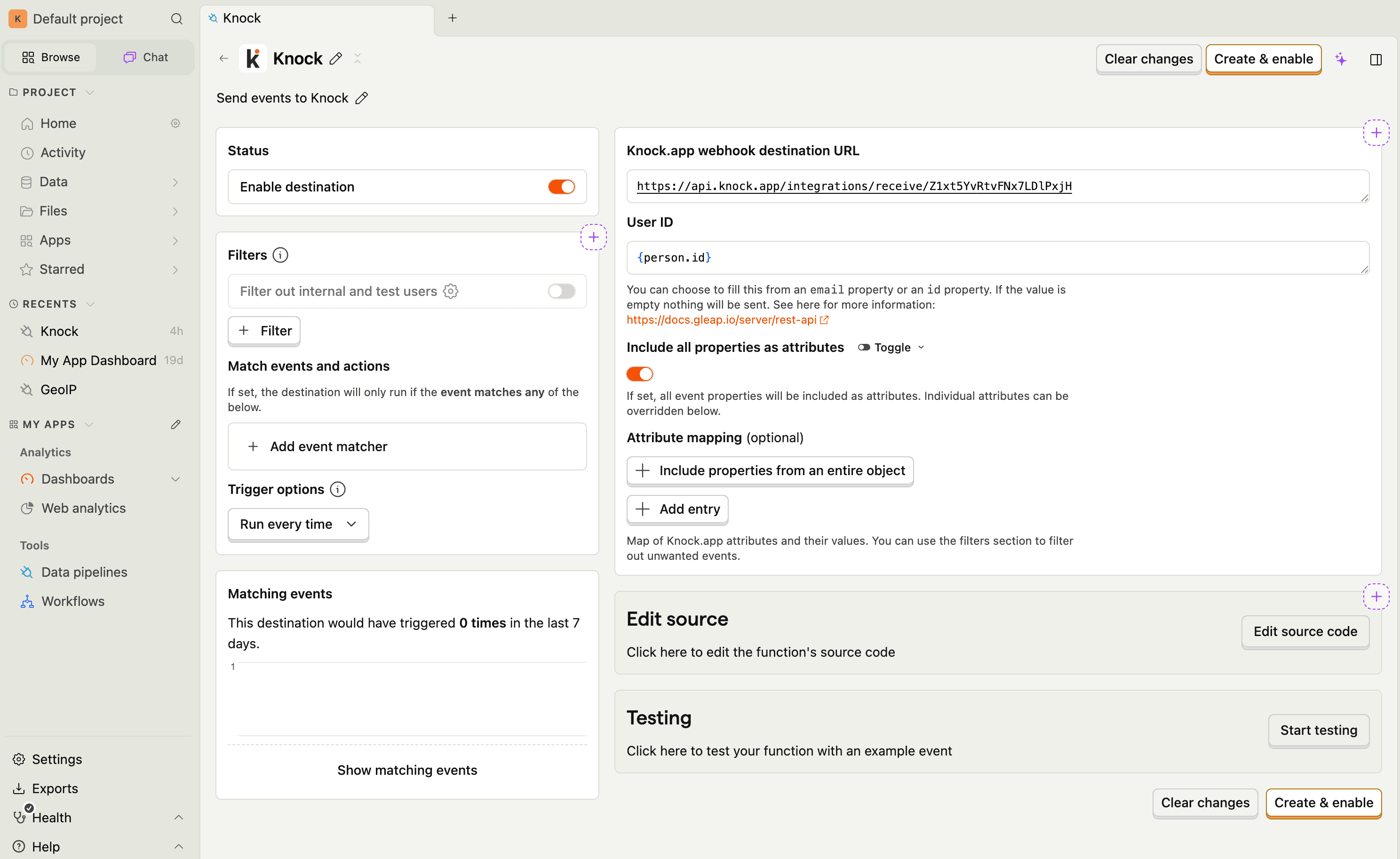
Once configured, PostHog sends events to Knock based on your destination filters and event matchers. You can verify that events are arriving by checking the event logs on the source environment page.
Pre-configured events
#PostHog webhook events are driven by the actions and events you configure in your PostHog project. Common scenarios include:
The exact event types depend on how you configure your PostHog actions and webhook destinations. See the PostHog events documentation for more details on available event types and payload formats.
Customization
#You can modify the default action mappings or add new ones for any event type Knock receives from PostHog. For details on how field mapping works with dot-notation paths, see the custom source page.
If you need to map PostHog events to actions beyond triggering workflows, see the full list of available actions in the sources overview.
Event idempotency
#Knock automatically configures idempotency for the PostHog source so duplicate events are not processed twice. By default, Knock uses body.messageId from the PostHog webhook payload as the idempotency key.
You can change the idempotency key field or disable idempotency checks from the Settings tab in your source environment configuration. Events without an idempotency key attribute are processed normally.
For details on how Knock handles idempotent events, key validation rules, and the default 24-hour idempotency window, see the source event idempotency section of the sources overview.